
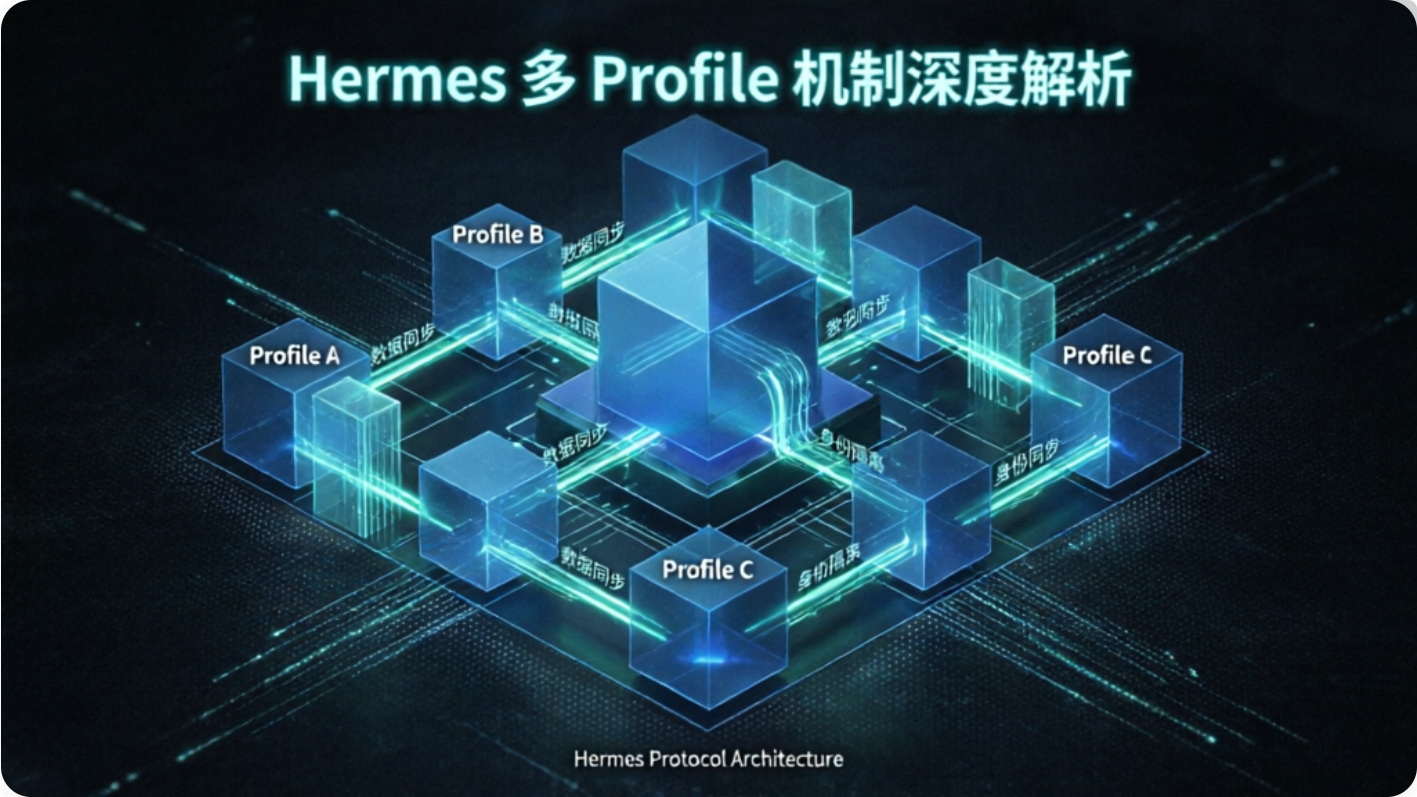
折腾 Hermes 也有一段时间了,从一开始的单一 agent 用着挺爽,到后来发现需求越来越多,一个 agent 根本不够用。
你想想看,你白天写代码需要一个 coding assistant,晚上想搞个研究 bot 帮你盯 arXiv 论文,周末还想弄个写作助手帮你整理笔记。这三个场景的模型选择、记忆体系、技能树完全不一样,硬塞到一个 agent 里,迟早会精神分裂。
Profile 机制就是为了解决这个问题而生的。
什么是 Profile
坦率的讲,Profile 就是 Hermes 的多实例隔离方案。
每个 Profile 是一个完全独立的 Hermes agent,有自己的 config.yaml、.env、SOUL.md、skills/、sessions/、memory、logs/、cron jobs、gateway state,所有状态全部隔离在各自的目录里,互不干扰。
底层实现其实挺巧妙的。Hermes 代码里有 119+ 个地方通过 get_hermes_home() 来解析路径,Profile 机制通过设置 HERMES_HOME 环境变量,让所有这些路径自动指向对应 Profile 的目录。
默认 Profile 就是 ~/.hermes 本身,自定义 Profile 在 ~/.hermes/profiles/<name>/。
完整的目录结构长这样
~/.hermes/
├── config.yaml                    # 全局配置
├── .env                           # API Keys
├── hermes-agent/                  # 源码
├── sessions/                      # Default profile sessions
├── skills/                        # Default profile skills
└── profiles/
    ├── coder/                      # Profile: 编程助手
    │   ├── config.yaml             # Profile 专属配置
    │   ├── .env                    # Profile 专属 API Keys
    │   ├── home/
    │   │   ├── .lark-cli/hermes/config.json   # Profile 专属 lark-cli 配置
    │   │   └── ...
    │   ├── skills/
    │   └── sessions/
    ├── research/                   # Profile: 研究助手
    └── writer/                     # Profile: 写作助手
每个 Profile 通过 ~/.hermes/config.yaml 中的 channels.feishu.accounts 绑定独立的飞书应用。这套设计让多个 agent 能在一台机器上安静地各过各的。
创建 Profile 的四种姿势
空白创建
最干净的方式,从零开始配置
hermes profile create coder
这会创建一个空的 ~/.hermes/profiles/coder/ 目录,你需要自己跑一遍 coder setup 来配置模型、API key 这些。
克隆配置
如果你已经有一个调好的 Profile,想基于它的配置创建一个新的,但 skills、sessions、memory 这些不要
hermes profile create research --clone
这会把 ~/.hermes/config.yaml 和 .env 复制过去,但其他状态文件都是空的。适合「我想换个模型但其他配置差不多」的场景。
完整克隆
连 skills、memory、sessions 一起复制
hermes profile create backup --clone-all
这个我一般在做重大配置调整之前用,先完整克隆一份当备份,改炸了还能回滚。
从指定 Profile 克隆
hermes profile create dev --clone-from coder
从 coder Profile 克隆配置到新的 dev Profile。适合你有多个 Profile,想基于某个特定 Profile 创建新实例的场景。
使用 Profile 的三种方式
命令别名
创建 Profile 的时候会自动生成一个命令别名
coder chat              # 等同于 hermes -p coder chat
coder gateway start     # 启动 coder 的 gateway
coder config set model.default anthropic/claude-sonnet-4
这个别名是写到 PATH 里的 wrapper script,用起来跟原生 hermes 命令没区别。我自己最常用的就是这种方式,打字少。
-p 参数
不想用别名或者在脚本里动态指定 Profile
hermes -p coder chat
hermes -p research gateway start
适合在 CI/CD 或者自动化脚本里用,Profile 名字可以作为变量传入。
Sticky Default
如果你某段时间主要用某个 Profile,可以把它设为默认
hermes profile use coder
之后直接 hermes chat 就会用 coder Profile,不用再打 -p。想切回去就 hermes profile use default。
使用 cat ~/.hermes/active_profile 查看当前活跃的 Profile。
默认 Profile 和自定义 Profile 的区别
说到这个,很多人刚接触 Profile 机制会有个疑问,默认 Profile 和自定义 Profile 到底有啥区别?
其实吧,从技术实现上看,它们没有本质区别。都是同样的目录结构,同样的配置文件格式,同样的命令接口。
唯一的区别是路径
- 默认 Profile 是
~/.hermes/ - 自定义 Profile 是
~/.hermes/profiles/<name>/
默认 Profile 就是你最初安装 Hermes 时的 ~/.hermes 目录,不需要迁移,现有安装直接就能用。自定义 Profile 是后来创建的,放在 profiles/ 子目录下。
另外一个小区别是服务命名
- 默认 Profile 的 systemd 服务叫
hermes-gateway.service - 自定义 Profile 叫
hermes-gateway-<name>.service
这是为了向后兼容,早期版本只有默认 Profile,服务名没有后缀。
但从我自己的使用体验来看,这两者在功能上完全对等。你完全可以把默认 Profile 当成一个「特殊的自定义 Profile」来理解。
多 Profile 的应用场景
配置完了,来聊聊实际使用。我自己目前跑了三个 Profile,每个对应不同的使用场景。
场景一,角色分离
这是最基础的用法。不同 Profile 扮演不同角色
# 编程助手
hermes profile create coder
coder config set model.default anthropic/claude-sonnet-4
echo "你是一个专注的编程助手,擅长代码审查和调试。" > ~/.hermes/profiles/coder/SOUL.md

# 研究助手
hermes profile create research
research config set model.default openai/gpt-4-turbo
echo "你是一个研究助手,擅长论文检索和文献综述。" > ~/.hermes/profiles/research/SOUL.md

# 写作助手
hermes profile create writer
writer config set model.default anthropic/claude-3-opus
echo "你是一个技术写作助手,擅长把复杂概念讲清楚。" > ~/.hermes/profiles/writer/SOUL.md
每个 Profile 有自己的 SOUL.md 来定义人格,有自己的 skills 来定义能力边界。coder 装了 debugging 和 development-workflow 技能,research 装了 research-workflow 技能,writer 装了 qiye-writer 技能。
互不干扰,各司其职。
场景二,项目隔离
如果你同时参与多个项目,每个项目有自己的技术栈和约定,可以用 Profile 来隔离
hermes profile create project-a
project-a config set terminal.cwd /path/to/project-a
project-a config set model.default anthropic/claude-sonnet-4

hermes profile create project-b
project-b config set terminal.cwd /path/to/project-b
project-b config set model.default openai/gpt-4-turbo
terminal.cwd 设置工作目录,这样每个 Profile 启动后自动 cd 到对应项目。配合项目根目录的 AGENTS.md 或 CLAUDE.md,agent 会自动加载项目约定。
这个方案比在同一个 agent 里反复切换工作目录要干净得多。
场景三,模型对比
有时候你想对比不同模型在同一个任务上的表现,可以创建多个 Profile,每个用不同的模型
hermes profile create test-claude
test-claude config set model.default anthropic/claude-sonnet-4

hermes profile create test-gpt4
test-gpt4 config set model.default openai/gpt-4-turbo

hermes profile create test-local
test-local config set model.default ollama/llama3
test-local config set model.base_url http://localhost:11434
然后给它们同样的任务,对比输出质量。我自己用这个方法来测试新模型,决定要不要把主力 Profile 切过去。
场景四,沙盒和生产
同一个配置,跑两个实例,一个用于测试,一个用于生产
hermes profile create staging --clone production
staging config set model.default openai/gpt-4-turbo-preview
staging config set terminal.cwd /path/to/staging
staging 克隆了 production 的所有配置,但工作目录和模型不同。你可以在 staging 里随便折腾,确认没问题了再把配置同步到 production。
多 Profile 协作
单个 Profile 各自为战已经很强了,但 Hermes 还提供了多 Profile 协作的机制。
Kanban 工作队列
这是 Hermes 的多 agent 协作核心。一个 SQLite 数据库作为共享看板,多个 Profile 作为 worker 领取任务
# 初始化看板
hermes kanban init

# 创建任务
hermes kanban create "实现用户登录模块" --assign coder

# 查看任务状态
hermes kanban list
coder Profile 会自动领取分配给它的任务,完成后标记为 done。你可以在看板上看到所有任务的状态、进度、评论。
这个机制适合把一个大任务拆解成多个子任务,分配给不同的 Profile 并行处理。比如一个 Profile 负责后端 API,一个负责前端 UI,一个负责测试用例。
delegate_task 子 agent
如果你不想搞这么重,可以用 delegate_task 在当前 Profile 里临时 spawn 子 agent
# 在 coder Profile 的会话里
delegate_task(
    goal="实现用户登录的单元测试",
    context="后端 API 已经完成,使用 pytest,测试文件在 tests/test_auth.py",
    toolsets=["terminal", "file"]
)
子 agent 有独立的会话和终端,但共享父 agent 的进程。适合临时拆分一个子任务,不需要长期运行。
Profile Distributions
如果你调教出了一个很好用的 Profile,想分享给别人或者在多台机器上同步,可以把它打包成 distribution
# 导出
hermes profile export coder  # 生成 coder.tar.gz

# 导入
hermes profile import coder.tar.gz
或者更进一步,把 Profile 发布到 git 仓库
hermes profile install github.com/you/research-bot --alias
别人一行命令就能安装你的整个 agent 配置,包括 SOUL、skills、cron jobs、MCP 连接。credentials、memory、sessions 这些敏感数据不会打包,留在本地。
多 Profile 接入聊天平台
这块是我觉得 Hermes 设计得最优雅的地方。
单 Profile 对应单 Bot
每个 Profile 运行自己的 gateway 进程,有自己的 bot token
# coder Profile 的 .env
TELEGRAM_BOT_TOKEN=111111:AAA...

# research Profile 的 .env
TELEGRAM_BOT_TOKEN=222222:BBB...
启动各自的 gateway
coder gateway start       # 启动 coder 的 Telegram bot
research gateway start    # 启动 research 的 Telegram bot
这样你就有两个独立的 Telegram bot,一个负责编程,一个负责研究。用户在 Telegram 里 @ 不同的 bot,消息会路由到对应的 Profile。
飞书、Discord、Slack 这些平台也是同样的逻辑。每个 Profile 用自己的 bot token,运行独立的 gateway 进程。
Token Lock 安全机制
如果你不小心让两个 Profile 用了同一个 bot token,第二个 gateway 会拒绝启动,并报错告诉你哪个 Profile 冲突了。
这个机制防止了消息路由混乱。坦率的讲,我第一次配置的时候确实犯过这个错,复制 .env 的时候忘了改 token,结果启动第二个 gateway 的时候直接报错。看到错误信息的那一刻我就知道,这个设计是真的贴心。
多 Profile 群聊
如果你想让多个 Profile 在同一个群聊里协作,有几种方案。
方案一,多 bot 同群
把多个 bot 拉到同一个群里,每个 bot 对应一个 Profile
coder gateway start
research gateway start
writer gateway start
在 Telegram 群里 @coder 问编程问题,@research 问研究问题,@writer 让它帮你润色文章。每个 bot 只响应 @ 自己的消息。
方案二,单 bot + Profile 切换
如果不想搞这么多 bot,可以用一个 bot,通过命令切换 Profile
# 在 bot 的对话里
/profile coder    # 切换到 coder Profile
/profile research # 切换到 research Profile
但这个方案有个问题,切换 Profile 之后,之前的会话上下文就丢了。适合「我现在要用不同角色处理一个任务」的场景,不适合长期并行。
方案三,Kanban 协作群
创建一个专门的协作群,多个 bot 都在群里,通过 Kanban 看板协调任务
# 在群里发消息
@coder 实现登录模块
@research 调研 OAuth2 最佳实践
@writer 整理成技术文档
每个 bot 领取自己的任务,完成后在看板上更新状态。你可以在群里看到整个协作过程。
飞书接入实战
说到飞书接入,我自己踩了不少坑,这里分享一下完整流程。
方式一,交互式配置(推荐)
不想手动编辑配置文件的话,Hermes 提供了交互式向导,一步步引导你完成配置
hermes -p coder gateway setup
运行后会进入一个命令行交互界面,流程大概是这样的
- 选择接入渠道 — 列表里会有 Telegram、Discord、飞书、Slack 等选项,选「飞书」
- 创建飞书应用 — CLI 会生成一个二维码或链接,用手机飞书扫码,直接跳转到飞书开放平台的应用创建页面。这一步省去了你自己去开放平台找入口、填表单的麻烦
- 自动获取凭证 — 应用创建完成后,App ID 和 App Secret 会自动回填到 CLI 里,不需要你手动复制粘贴
- 配置事件订阅 — CLI 会提示你确认 webhook 回调地址,一般会自动生成本地监听地址。如果你用了反向代理或者 ngrok,在这里填公网可达的 URL
- 权限确认 — 飞书应用需要开通消息收发等权限,CLI 会列出需要的权限清单,提醒你逐一开通
- 写入配置 — 所有信息确认后,CLI 自动把凭证写入
~/.hermes/profiles/coder/.env
整个过程基本不用碰配置文件,对新手很友好。配置完之后直接启动
coder gateway start
方式二,手动编辑配置
如果你更喜欢掌控每一步,或者交互式向导出了问题,也可以手动配置。
首先你需要在飞书开放平台创建一个应用,获取 App ID 和 App Secret。然后在 Hermes 里配置
# 编辑 Profile 的 .env
nano ~/.hermes/profiles/coder/.env
添加飞书的配置
FEISHU_APP_ID=cli_xxx
FEISHU_APP_SECRET=xxx
FEISHU_VERIFICATION_TOKEN=xxx
FEISHU_ENCRYPT_KEY=xxx
然后启动 gateway
coder gateway start
Hermes 会自动处理飞书的事件订阅和消息路由。你可以在飞书里 @ 这个 bot,它会用 coder Profile 的配置来响应。
如果你想让多个 Profile 接入飞书,每个 Profile 需要创建独立的飞书应用,获取各自的 App ID 和 Secret。然后在各自的 .env 里配置,启动各自的 gateway。
这块需要注意的是,飞书的应用审核比较严格,创建多个应用可能会触发审核。我自己的做法是先用一个应用测试,确认配置没问题了再创建其他应用。
飞书流式卡片插件
Hermes 默认的飞书回复是纯文本,想实现打字机效果的流式卡片,需要装一个社区插件 hermes-feishu-streaming-card。
这玩意其实是一个独立的 sidecar 服务,跑在 Hermes 旁边。Hermes 通过 hook 机制把回复内容发给 sidecar,sidecar 负责在飞书里创建和更新卡片。架构上解耦得很干净。
安装过程
# 克隆项目
git clone https://github.com/baileyh8/hermes-feishu-streaming-card.git ~/hermes-feishu-streaming-card

# 安装到 Hermes Gateway 的 venv(必须,hook 需要能 import)
source ~/.hermes/hermes-agent/venv/bin/activate
pip install -e ~/hermes-feishu-streaming-card
安装完了需要创建一个 sidecar 配置文件 ~/.hermes_feishu_card/config.yaml。多 Profile 模式下,每个 Profile 要独立配置飞书凭据
server:
  host: 127.0.0.1
  port: 8765

profiles:
  coder:
    feishu:
      app_id: "cli_aaa0395b87f69cb0"
      app_secret: "真实appSecret"
      base_url: https://open.feishu.cn/open-apis
      timeout_seconds: 30
    bots:
      default: coder_bot
      items:
        coder_bot:
          name: 编程助手
          app_id: "cli_aaa0395b87f69cb0"
          app_secret: "真实appSecret"
          card:
            title: 编程助手
    bindings:
      fallback_bot: coder_bot
      chats: {}
    card:
      title: Hermes Coder

  research:
    feishu:
      app_id: "cli_aaa03591c679dcc8"
      app_secret: "真实appSecret"
      base_url: https://open.feishu.cn/open-apis
      timeout_seconds: 30
    bots:
      default: research_bot
      items:
        research_bot:
          name: 研究助手
          app_id: "cli_aaa03591c679dcc8"
          app_secret: "真实appSecret"
          card:
            title: 研究助手
    bindings:
      fallback_bot: research_bot
      chats: {}
    card:
      title: Hermes Research

card:
  title: Hermes Agent
  footer_fields:
    - duration
    - model
    - input_tokens
    - output_tokens
    - context
这里有个大坑需要注意。多 Profile 模式下,每个 Profile 的飞书凭据必须在 sidecar 配置里独立设置,顶层的 FEISHU_APP_ID / FEISHU_APP_SECRET 环境变量会被直接忽略。我第一次配的时候没注意这个,搞了半天卡片就是不出来,排查了一圈才发现凭据没读到。
配完了还需要开启 Hermes 的流式编辑,在 ~/.hermes/config.yaml 里加
streaming:
  enabled: true
  transport: edit
然后诊断兼容性并安装 hook
source ~/.hermes/hermes-agent/venv/bin/activate

# 诊断兼容性
python3 -m hermes_feishu_card.cli doctor \
  --config ~/.hermes_feishu_card/config.yaml \
  --hermes-dir ~/.hermes/hermes-agent \
  --explain

# 安装 hook
python3 -m hermes_feishu_card.cli install \
  --hermes-dir ~/.hermes/hermes-agent \
  --yes
启动 sidecar
python3 -m hermes_feishu_card.cli start --config ~/.hermes_feishu_card/config.yaml
python3 -m hermes_feishu_card.cli status
预期看到 status: running 和 routing.bot_count 的数字,就说明跑起来了。
日常运维就这几个命令
# 查看状态
python3 -m hermes_feishu_card.cli status --config ~/.hermes_feishu_card/config.yaml

# 停止
python3 -m hermes_feishu_card.cli stop --config ~/.hermes_feishu_card/config.yaml

# 重启(修改配置后需要)
python3 -m hermes_feishu_card.cli stop --config ~/.hermes_feishu_card/config.yaml && \
python3 -m hermes_feishu_card.cli start --config ~/.hermes_feishu_card/config.yaml
关闭 Busy 通知
这个虽然是个小配置,但我觉得值得一提。
当 busy_input_mode 设为 steer 或 queue 的时候,Agent 正在忙,你又给它发了消息,它会回复一条通知
⏩ Steered into current run (1 min elapsed, iteration 1/90). Your message arrives after the next tool call.
偶尔收到一次还行,频繁交互的时候这条通知真的很烦。
关掉它很简单,在 ~/.hermes/config.yaml 的 display 节下面加一行
display:
  busy_ack_enabled: false
原理是 gateway/run.py 里检查 HERMES_GATEWAY_BUSY_ACK_ENABLED 这个环境变量,设为 false 后跳过发送通知,但输入仍然正常处理,steer、queue、interrupt 这些逻辑完全不受影响。
改了之后记得重启 Gateway 才会生效。
Lark-CLI 用户身份授权
这块是比较重要的一个话题,跟飞书的日历功能直接相关。
Hermes 内置的 feishu_calendar_tool.py 用的是 tenant_access_token,也就是应用身份来调用飞书 API。啥意思呢?就是它创建的日程只会出现在飞书应用自己的日历上,不会出现在你的个人日历里。
这显然不是我们想要的效果。你想让 Agent 帮你创建日程,日程得在你自己的日历上能看到才行。
解决方案是用 lark-cli 走 OAuth 用户授权,拿到 user_access_token。
先把飞书凭据写到对应 Profile 的 .env 里
echo 'FEISHU_APP_ID=cli_aaa0395b87f69cb0' >> ~/.hermes/profiles/coder/.env
echo 'FEISHU_APP_SECRET=真实appSecret' >> ~/.hermes/profiles/coder/.env
然后把 lark-cli 绑定到 Hermes Profile
# 检查是否已绑定
lark-cli config show

# 绑定
lark-cli config bind --source hermes --identity user-default --force
几个参数说一下。--source hermes 是自动从 HERMES_HOME 环境变量检测配置来源,--identity user-default 是默认使用用户身份,这样才能访问个人日历和云盘这些资源,--force 是确认身份切换的风险。
绑定成功后会返回 ok: true 和 identity: user-default。
接下来是发起 OAuth 授权
lark-cli auth login --domain calendar --no-wait --json
输出里会有 verification_url 和 device_code。可以生成二维码方便手机扫码
cd /tmp && lark-cli auth qrcode "验证链接" --output lark_auth_qr.png
让用户在手机飞书里扫码授权。扫完之后
lark-cli auth login --device-code OaLxD_pLJum_l0D15GvZjXUw...
授权成功后会显示用户名和请求的 scopes
OK: 授权成功! 用户: 用户682480 (ou_0270e075d164d1807b696711f82fdddc)
本次请求 scopes: calendar:calendar.event:create calendar:calendar:read ...
用 lark-cli auth status 可以验证授权状态,确认 user 身份的 status: ready 和 tokenStatus: valid 就对了。
用 lark-cli calendar +agenda --as user 测试一下个人日程访问,返回 ok: true, identity: user 就说明搞定了。
每个 Profile 还有自己独立的 lark-cli 配置,路径在 ~/.hermes/profiles/<profile>/home/.lark-cli/hermes/config.json。里面的关键是 defaultAs: user 这个字段,它确保 Profile 的 Agent 执行 lark-cli 命令时默认以用户身份操作,日程就会创建到你的个人日历上而不是应用日历。
说到这个,有个很实用的技巧。你可以在 coder Profile 的记忆体系里写入工具使用规则
# ~/.hermes/profiles/coder/memories/MEMORY.md

用户已配置飞书 CLI (lark-cli) 并使用 User 授权。
创建、查看、修改日程必须使用 `lark-cli calendar` 命令系列,而不是 `feishu_calendar_*` 工具。
默认操作日历应为用户个人日历 (`primary`)。
Hermes 的记忆体系会在每次新会话开始时注入到系统提示中,Agent 会遵循里面记录的规则。写入这段话之后,coder Profile 的 Agent 后续就会自动选择 lark-cli calendar 来操作日程。
这个思路其实可以推广到所有需要「教」Profile 正确行为的场景。你通过 MEMORY.md 持久化地告诉 Agent 该用什么工具、该怎么用,比每次在对话里纠正要高效得多。
Bot 身份 vs User 身份
这块容易搞混,我整理了一个对比表
| 维度 | Bot 身份 (tenant_access_token) | User 身份 (user_access_token) |
|---|---|---|
| 获取方式 | appId + appSecret | OAuth 用户扫码授权 |
| 消息收发 | ✅ Gateway 收发飞书消息 | ❌ 不适合用于消息收发 |
| 个人日历 | ❌ 只能看到 bot 自己的日历 | ✅ 可以查看和管理个人日历 |
| 云盘/文档 | ❌ 只能访问应用相关资源 | ✅ 可以访问用户个人资源 |
| 消息发送身份 | 以应用名义发送 | 以用户名义发送 |
| 适合场景 | 机器人聊天、卡片更新 | 操作个人资源(日程、文档、云盘) |
最佳实践就是,Gateway 消息收发用 bot 身份,操作用户个人资源用 user 身份。两者各司其职,不要混着用。
持久化服务
如果你希望 gateway 在后台持续运行,重启后自动恢复,可以把它安装为系统服务
coder gateway install       # 创建 systemd 服务
coder gateway start         # 启动服务
每个 Profile 的服务名是独立的
- 默认 Profile 是
hermes-gateway.service - coder Profile 是
hermes-gateway-coder.service - research Profile 是
hermes-gateway-research.service
它们互不影响,可以独立启停。
在 WSL2 里用 systemd 需要注意,确保 /etc/wsl.conf 里配置了 systemd=true,否则服务会在 WSL 重启后丢失。
批量管理
Profile 多了之后,逐个启停很麻烦。可以写个脚本来批量管理
#!/bin/sh
profiles="default coder research writer"

for profile in $profiles; do
    if [ "$profile" = "default" ]; then
        hermes gateway "$1"
    else
        hermes -p "$profile" gateway "$1"
    fi
done
保存为 hermes-gateways,加上执行权限
chmod +x hermes-gateways
./hermes-gateways start    # 启动所有 Profile
./hermes-gateways stop     # 停止所有 Profile
./hermes-gateways restart  # 重启所有 Profile
我自己把这个脚本放在 ~/.local/bin/ 里,用起来很方便。
查看日志和状态
多 Profile 运行的时候,排查问题需要看日志。每个 Profile 的日志在自己的目录下
# 默认 Profile
tail -f ~/.hermes/logs/gateway.log

# coder Profile
tail -f ~/.hermes/profiles/coder/logs/gateway.log
想同时看所有 Profile 的日志
tail -f ~/.hermes/logs/gateway.log ~/.hermes/profiles/*/logs/gateway.log
查看 Profile 状态
hermes profile list # 列出所有 Profile 及其状态
这个命令会显示每个 Profile 的模型、gateway 运行状态、最后活跃时间。
更新和维护
hermes update 会拉取最新代码,并自动同步新 bundled skills 到所有 Profile
hermes update
# → Code updated (12 commits)
# → Skills synced: default (up to date), coder (+2 new), research (+2 new)
用户修改过的 skills 不会被覆盖,只有 bundled skills 会同步。
更新完之后重启所有 gateway
./hermes-gateways restart
踩坑记录
说到这个,我分享几个自己踩过的坑。
坑一,工作目录混淆
一开始我以为 Profile 目录就是工作目录,结果发现 agent 执行命令的时候还是在 ~ 下。后来才搞明白,Profile 目录是 Hermes 的状态目录,工作目录由 terminal.cwd 控制。
如果你希望某个 Profile 默认在特定项目目录下工作,需要显式设置
coder config set terminal.cwd /absolute/path/to/project
注意必须是绝对路径,cwd: "." 在 local backend 下表示「Hermes 启动时的目录」,不是 Profile 目录。
坑二,Token 冲突
前面提到过,两个 Profile 用了同一个 bot token,第二个 gateway 会拒绝启动。排查方法
grep -H 'TELEGRAM_BOT_TOKEN\|DISCORD_BOT_TOKEN' \
    ~/.hermes/.env ~/.hermes/profiles/*/.env
这个命令会列出所有 Profile 的 token,一眼就能看出哪个重复了。
坑三,WSL2 下服务丢失
WSL2 重启后 systemd 服务没了。原因是 /etc/wsl.conf 里没有配置 systemd=true。
解决方法
sudo nano /etc/wsl.conf
添加
[boot]
systemd=true
然后在 PowerShell 里重启 WSL
wsl --shutdown
重新进入 WSL 后,systemd 服务就会自动恢复。
坑四,invalid_client 授权失败
OAuth 授权的时候遇到 invalid_client: The client secret is invalid 错误,折腾了好一阵。
根因是 lark-cli config bind 的时候把 appSecret 存进了 keychain。如果你 bind 的时候 appSecret 是个占位符,比如 YOUR_SCHEDULE_APP_SECRET,后来在 Profile 的 .env 里改了真实值,keychain 里的并不会自动更新。
解决方法是把旧的清掉重新来一遍
# 1. 确认 Profile 的 .env 里是真实的 appSecret
grep FEISHU_APP_SECRET ~/.hermes/profiles/coder/.env

# 2. 清除旧配置
lark-cli config remove

# 3. 重新绑定
lark-cli config bind --source hermes --identity user-default --force

# 4. 重新发起 OAuth
lark-cli auth login --domain calendar --no-wait --json
坑五,日程创建了但日历里看不到
Agent 调用 feishu_calendar_create_event 返回成功了,但用户个人日历里就是没有那条日程。
这个问题前面其实已经说过了,内置工具用的是应用身份,日程被创建到了飞书应用的日历上。短期方案是让 Agent 用 lark-cli calendar +create --as user 代替内置工具,长期方案是改造 feishu_calendar_tool.py 支持 OAuth user_access_token,不过这个工作量比较大。
坑六,流式卡片不更新
遇到卡片没有流式更新的时候,按这个顺序排查
# 1. 检查 streaming 配置
grep -A2 "streaming:" ~/.hermes/config.yaml
# 应为 enabled: true, transport: edit

# 2. 检查 doctor 状态
python3 -m hermes_feishu_card.cli doctor --hermes-dir ~/.hermes/hermes-agent --explain

# 3. 检查 sidecar 状态
python3 -m hermes_feishu_card.cli status --config ~/.hermes_feishu_card/config.yaml

# 4. 检查 hook 策略
# doctor 应显示 hook_strategy: gateway_run_013_plus
大部分情况下是 sidecar 没启动或者 streaming 配置没写对。
快速参考
最后整理一份命令速查表,方便日常使用
# 流式卡片 Sidecar
python3 -m hermes_feishu_card.cli start  --config ~/.hermes_feishu_card/config.yaml
python3 -m hermes_feishu_card.cli stop   --config ~/.hermes_feishu_card/config.yaml
python3 -m hermes_feishu_card.cli status --config ~/.hermes_feishu_card/config.yaml

# Lark-CLI
lark-cli config bind --source hermes --identity user-default --force
lark-cli auth login --domain calendar --no-wait --json
lark-cli auth login --device-code <device_code>
lark-cli auth status
lark-cli calendar +agenda --as user

# Profile 专属路径
~/.hermes/profiles/<name>/.env
~/.hermes/profiles/<name>/config.yaml
~/.hermes/profiles/<name>/home/.lark-cli/hermes/config.json

# 全局配置
~/.hermes/config.yaml
总结
回过头来看,Hermes 的 Profile 机制设计得真的很优雅。
它不是简单地在同一个 agent 里加个「角色切换」功能,而是从底层就做了完全隔离。每个 Profile 是一个独立的 agent,有自己的状态、配置、记忆、技能树。这种设计虽然占用更多磁盘空间,但换来了真正的隔离性和灵活性。
多 Profile 协作的 Kanban 机制也很有想象力。把任务拆解、分配、追踪这些项目管理概念引入到 AI agent 体系里,让多个 agent 能像一个团队一样协作。
接入聊天平台这块,单 Profile 对应单 bot 的设计很直观,多 Profile 群聊的方案也很灵活。你可以根据自己的需求选择最合适的方案。飞书接入虽然坑不少,但趟过去之后体验是真的好,尤其是流式卡片加上用户身份授权都配好之后,Agent 帮你管理日程的感觉就很顺畅了。
如果你也在折腾 AI agent,强烈推荐试试 Profile 机制。它能让你的 agent 体系从「单兵作战」升级到「团队协作」,打开很多新的可能性。
如果你也有类似的折腾经历,欢迎交流。
原文链接 https://qiyec.site/archives/hermes-multi-profile-deep-dive
【Hermes Agent】多Profile实战&机制深度解析
https://qiyec.site/archives/hermes-multi-profile-deep-dive
评论